Microsoft Word has many features to help you format your resume. But regardless of your Word proficiency, you may be unsure where to start. You want your resume to make a good impression, but it’s important not to waste time struggling with an elaborate format in your job search. In fact, most modern resumes work better with a simple design that’s easy to edit as a resume template for each job application.
To format your resume quickly and effectively in Word, use the settings below as your default. You can adjust them further as you write your resume based on your preference or job search needs within a resume template.
Home tab, Font section
Font style
Opt for a clear, traditional resume font like Calibri, Cambria, or Franklin Gothic Book.
Font size
Use size 17 for your name, 12 to 14 for section headings, and 10 to 11 for all other text.
Bold
Bold your name, section headings, job titles, and other titles like college degrees.
Senior Restaurant Manager
Bachelor of Arts (BA)
Italics
Italicize your employers, schools, and any other organization names.
Examples:
Marriott International
Cornell University
National Registry of Food Safety Professionals
Underline
Generally avoid underlining text on your resume, except for any hyperlinks.
Home tab, Paragraph section
Text alignment
Left-align all the text in your document.
Borders
Add a thin black border under each section heading. This setting works well with left-aligned text and helps the hiring manager quickly see how your resume is organized.
Line spacing
Set your entire document as 1.15 line spacing.
Bullet points
Use bullet points to set off your achievements in your experience section.
Layout tab, Page Setup section
Columns
Stick with one column for your entire document. On a one-column resume, use the pipe symbol to save space in sections that have lists of short phrases, such as your skills section.
Example:
Key Skills
Budgeting and financial planning | Cost reduction | Customer relations | Inventory management | Process streamlining | Staff supervision | Training and development | Work scheduling
Page margins
Use one-inch margins for all four sides.
Layout tab, Paragraph section
Point spacing
Use eleven points in the “Before” field for the entire document, except:
- Zero points for the contact header
- 14 points for all section headings
- 5 points for any bulleted text
Use zero points in the “After” field for your entire document.
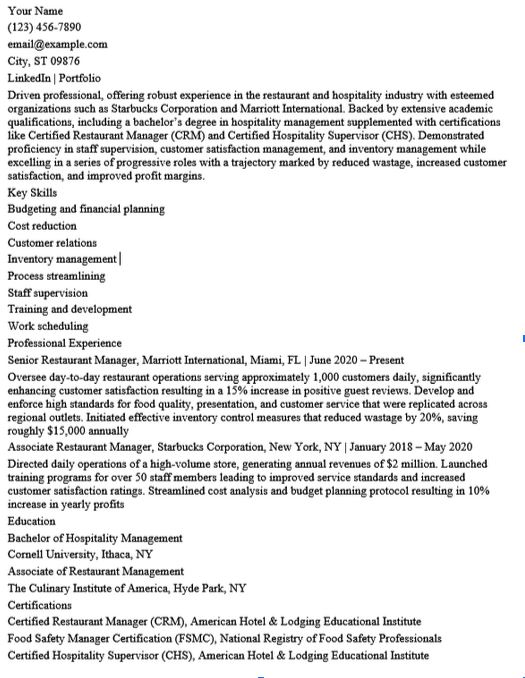
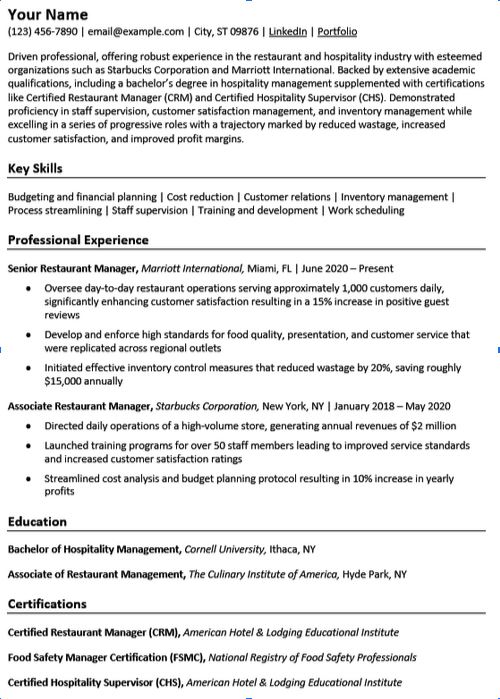
Word Resume Design Example
In the sample below, see how these Word settings combined turn plain text into a polished, ready-to-use resume.
Before
After
1. What is the best font for a resume in Word?
Use a clean, professional font like Calibri, Cambria, or Franklin Gothic Book. These fonts ensure readability and compatibility across different devices.
2. What font size should I use on my resume?
- Name: Size 17
- Section Headings: Size 12-14
- Body Text: Size 10-11
3. Should I use bold or italics in my resume?
Yes, but use them strategically:
- Bold: Name, section headings, job titles, and degree titles
- Italics: Employer names, school names, and certifications
4. How should I align my resume text?
Left-align all text for easy readability. Avoid center alignment, as it can disrupt scanning by applicant tracking systems (ATS).
5. Should I use a border in my resume?
A thin black border under section headings helps improve organization and readability. Avoid excessive lines or design elements.
6. What is the best line spacing for a resume?
Set your document to 1.15 line spacing for a clean look.
7. Can I use multiple columns in my resume?
Stick to one column to maintain an ATS-friendly format. Use the pipe symbol (|) to separate short phrases in sections like skills.
8. What are the ideal page margins for a resume?
Use 1-inch margins on all four sides to ensure a balanced, professional appearance.
9. How should I format bullet points in my work experience?
- Use concise bullet points to highlight key achievements.
- Set 5-point spacing before each bullet for readability.
10. Should I include hyperlinks on my resume?
Yes! You can hyperlink your LinkedIn profile, portfolio, or email but avoid underlining other text.
Let me know if you'd like additional refinements!
Executive Resume Writer and Career Coach
Andrew Stoner is an executive career coach and resume writer with 17 years of experience as a hiring manager and operations leader at two Fortune 500 Financial Services companies, and as the career services director at two major university business schools.